How to embed a scheduling widget on your website
The Yoya TeamSep 4, 20266 min read

There's a gap on most websites between "we'd like to talk to you" and actually getting a time in the calendar. It's usually a Contact page with a link on it, and the link goes somewhere else.
That handoff costs you. Your visitor was reading about your work, in a mood to act, and you sent them to a different domain that takes a second to load and looks nothing like the page they came from. Some of them come back. Not all.
A scheduling widget closes that gap: a small launcher sits in the corner of your own site, and booking happens in a panel over the page the visitor is already reading. This is a practical guide to adding one — what the embed methods actually do under the hood, the exact steps for Yoya, and the four things that most commonly break an embed.
Link, inline embed, or widget?
"Embed a booking page" means three different things, and picking the wrong one is the most common mistake.
| Method | What it is | Best for |
|---|---|---|
| Booking link | A URL you paste into email, a bio, or a button | Outbound email, signatures, DMs |
| Inline embed | The booking page rendered inside a section of your page | A dedicated /book or /contact page |
| Widget (launcher) | A floating button that opens a panel over your site | Every other page on the site |
The distinction that matters: an inline embed is a destination — the visitor has to already be on the page where you put it. A widget travels with the visitor, so it's available on the pricing page, the case study, the blog post, wherever they happen to be when they decide.
If you only add one, add the widget. Most people decide to book somewhere other than your contact page.
What the widget actually is
Worth understanding before you paste something into every page of your site.
A widget script is small — Yoya's is about 7KB — and it does three things:
- Creates a shadow root. The launcher and panel live inside a shadow DOM, which means your site's CSS can't leak in and break the widget, and the widget's CSS can't leak out and break your site. Without this, a widget is one
* { box-sizing: border-box }away from looking broken on somebody's site. - Loads the booking page in an iframe, lazily. The iframe isn't created until the first time someone opens the panel. So the widget costs you a 7KB script on page load and nothing else until it's used.
- Listens for messages from that iframe — for example, so pressing Escape inside the panel can close it — and checks the origin of every message before acting on it.
That last point is a security property, not a nicety. A widget that acts on any postMessage it receives can be driven by any other frame on the page.
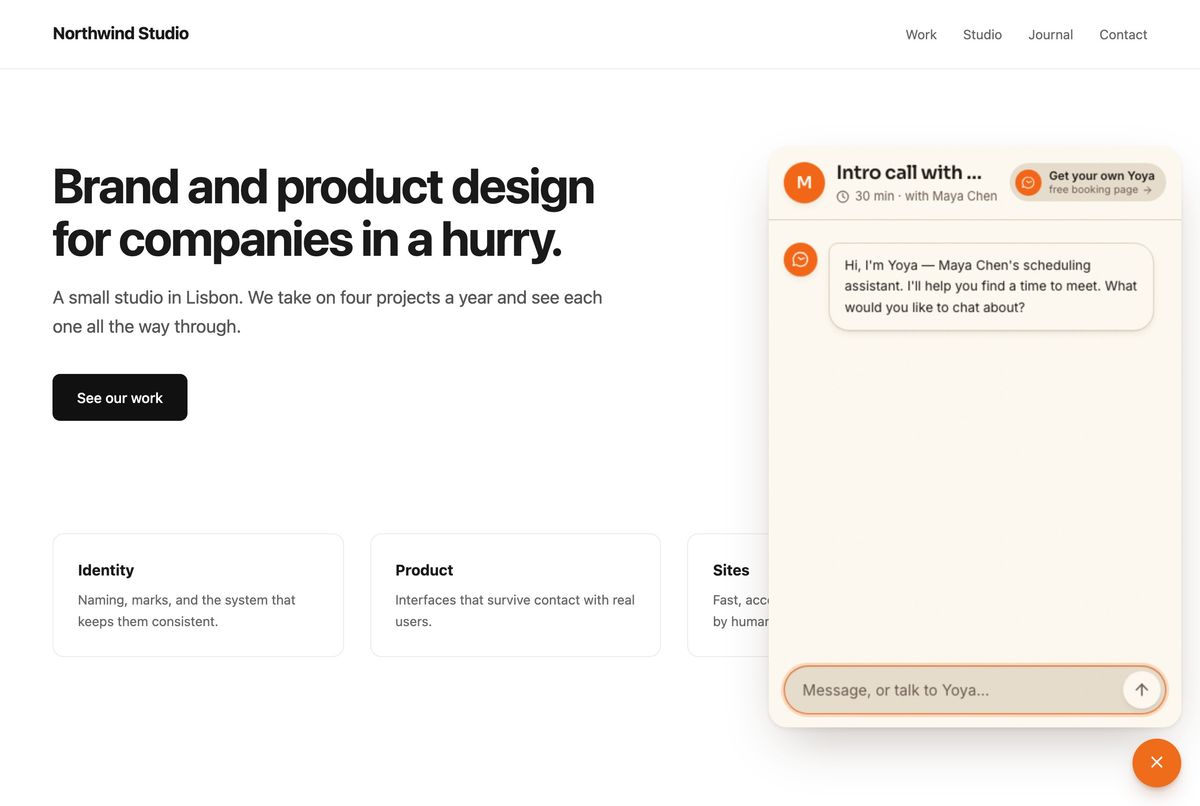
The widget open on a site. The visitor never leaves the page they were reading.
Adding the Yoya widget: three steps
1. Open the meeting type you want the widget to book. In your Yoya dashboard, pick the booking page — the widget is per-link, so a "Sales call" widget and a "Support" widget are separate snippets.
2. Copy the snippet. It looks like this:
<script src="https://yoya.ai/embed.js" data-yoya="your-slug" async></script>
3. Paste it before the closing </body> tag on every page you want the launcher to appear on. If your site has a shared layout, footer include, or a "custom scripts" box in the site settings, that's the place — one paste covers the whole site.
That's the whole installation. There's no account to connect, no API key, and no build step.
To change the launcher's label from the default, add one attribute:
<script src="https://yoya.ai/embed.js" data-yoya="your-slug" data-label="Talk to sales" async></script>
The four things that break an embed
These are the failures worth knowing about in advance, because none of them produce a useful error message.
1. A sandbox attribute without allow-same-origin
If your site or CMS wraps third-party scripts in a sandboxed iframe, check what permissions it grants. A sandbox missing allow-same-origin puts the frame in an opaque origin, which means it has no access to storage — and anything that needs a session, including a chat that remembers what you said thirty seconds ago, silently fails to work.
The widget will render. The launcher will open. Messages won't send. Nothing in the console will tell you why.
If you control the wrapper, the sandbox needs at least allow-scripts allow-same-origin allow-forms allow-popups.
2. Content Security Policy
If your site sends a CSP header, it has to allow the widget's script and its frame:
script-src https://yoya.ai; frame-src https://yoya.ai;
A CSP violation does log to the console, which makes this the friendliest of the four.
3. The booking page refusing to be framed
Any page can decline to be embedded by sending X-Frame-Options: DENY or a frame-ancestors policy. This is a good thing — it's what stops a page being loaded invisibly over a decoy and clickjacked.
The nuance is that a scheduling tool needs it on some routes and not others. Yoya sends frame-ancestors 'none' on the dashboard, the sign-in screens and the API, so nobody can frame the pages where you're logged in. Public booking pages are deliberately framable, because that's the entire feature.
If you're embedding something and getting a blank panel, open the browser console: a refused frame says so explicitly.
4. Ad blockers and tracking protection
Some blockers treat any third-party script that opens a panel as a chat tracker. There's no clever fix; it's worth knowing that a small percentage of visitors won't see the launcher, which is one more reason to keep a plain booking link on your contact page as well.
Where to put the launcher
Bottom right is the convention, and conventions are worth following for controls people need to find without looking. A few things worth deciding:
- Not on every page, necessarily. A launcher on your checkout or support pages can compete with what the visitor is actually trying to do.
- Mind what's already in that corner. Cookie banners, chat widgets, and back-to-top buttons all want the same 80 pixels. Two floating buttons stacked on each other is worse than either alone.
- Label it for the action, not the tool. "Book a call" and "Talk to sales" outperform "Schedule" because they say what happens next.
What a conversational widget changes
Most scheduling widgets show a calendar grid in a small box. The panel is narrow, so the grid gets cramped, and it's the worst version of the experience.
A conversation doesn't have that problem — a chat is designed for a narrow column. In Yoya's case the visitor types what they need, the assistant offers real times from your calendar, and the booking completes without a grid ever appearing.
The side effect is that you learn why they're coming. Because the booking happened as a conversation, you get a brief before the call — who they are, what they want, what they said — instead of a name, an email address and a time. On a widget that sits on your pricing page, that context is often the most valuable thing the visitor gives you.
Before you ship it
- Paste the snippet, then load your site in a private window — not the tab you've been developing in.
- Open the panel and complete one real booking end to end. Delete it afterwards.
- Check it on your phone. The panel should fill the screen sensibly rather than render a 440px desktop panel scaled down.
- Check your contact page still has a plain link too, for the visitors whose blocker ate the script.
If you want to try the widget before installing it, every Yoya booking page works as one — set up a free booking link and the snippet is on the meeting type's edit screen, ready to paste.