How to Schedule Meetings From Claude With the Yoya Connector
The Yoya TeamNov 17, 20264 min read
The short answer: open Yoya in Claude's connector directory, press Connect, sign in to Yoya and choose what Claude may read or change. From then on you can ask Claude to create a booking link, set your hours, show this week's meetings or read the brief for your next call. It takes about two minutes and works on Yoya's free plan.
This guide covers the setup, what you can ask, and what Claude is not allowed to do on its own.
What the Yoya connector does
Yoya is an AI scheduling assistant. You share one link, she chats with your guest, books a real open time on your calendar and writes you a brief on who is coming and why.
The connector puts your Yoya account inside Claude. It has 41 tools, and they cover what the Yoya dashboard does:
- Create, edit and delete meeting types, including length, location and the questions Yoya asks guests
- Set weekly hours and block or open specific dates
- List upcoming and past bookings, and read each meeting brief
- Reschedule or cancel a booking
- Manage a team: invite members, round-robin and collective meetings
- Check your plan, usage and which calendars are connected
It works in Claude on the web, in the desktop and mobile apps, and in Claude Code.
Connect Yoya to Claude
You need a Yoya account. The free plan is enough: one booking page and 10 bookings a month. Create one here if you don't have it yet.
- Open Yoya in Claude's connector directory. You can also get there from Claude's settings: Connectors, then browse the directory and search for Yoya.
- Press Connect. Claude sends you to Yoya to sign in.
- Choose what Claude can access. Reading is selected by default. Changing things, such as creating a meeting type or editing your hours, is a separate box you tick yourself.
- Approve, and you're back in Claude with Yoya connected.
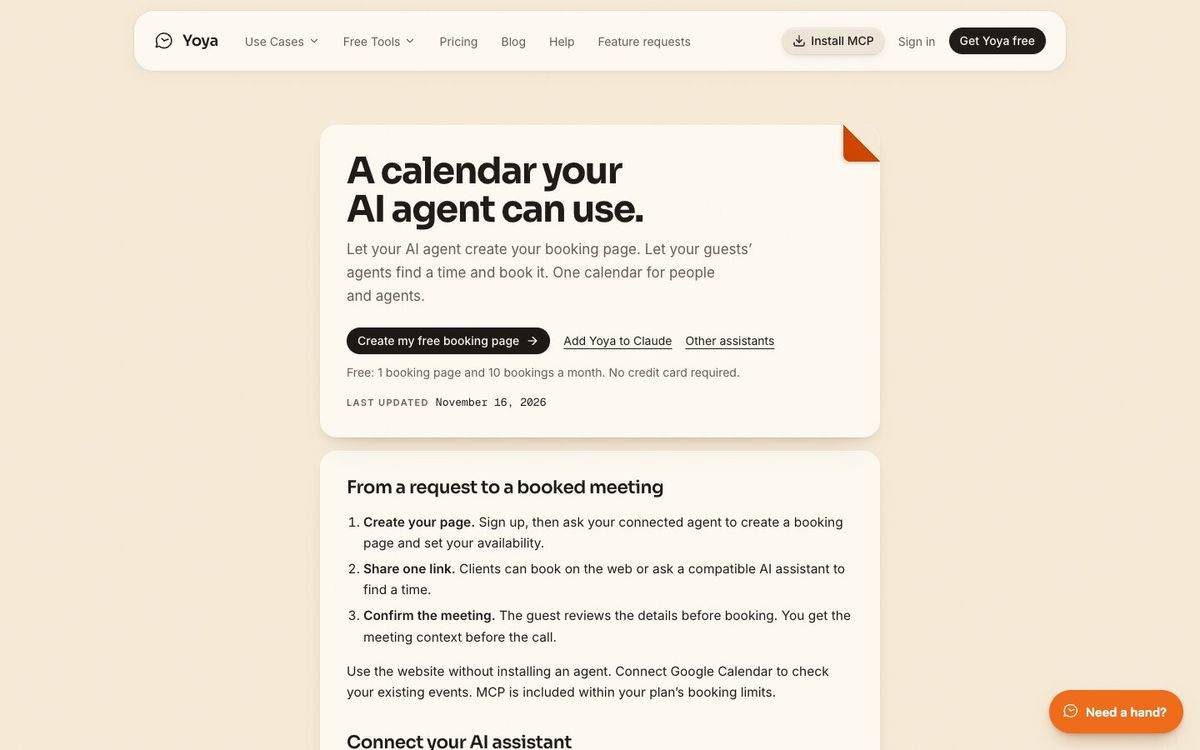
The same link is at the top of Yoya's MCP guide, along with setup steps for Cursor, ChatGPT and other assistants.
Prompts to try first
Start with something that only reads, so you can see what Claude gets back:
What meetings do I have this week? Show me the brief for the next one.
Claude lists your bookings, then reads the brief: who the guest is, what they want to talk about and anything they answered in the intake chat. Yoya gathered that when the guest booked, so there is nothing for you to fill in.
Then create something:
Create a 30 minute intro call on Google Meet, open Tuesday to Thursday from 10am to 4pm, and give me the booking link.
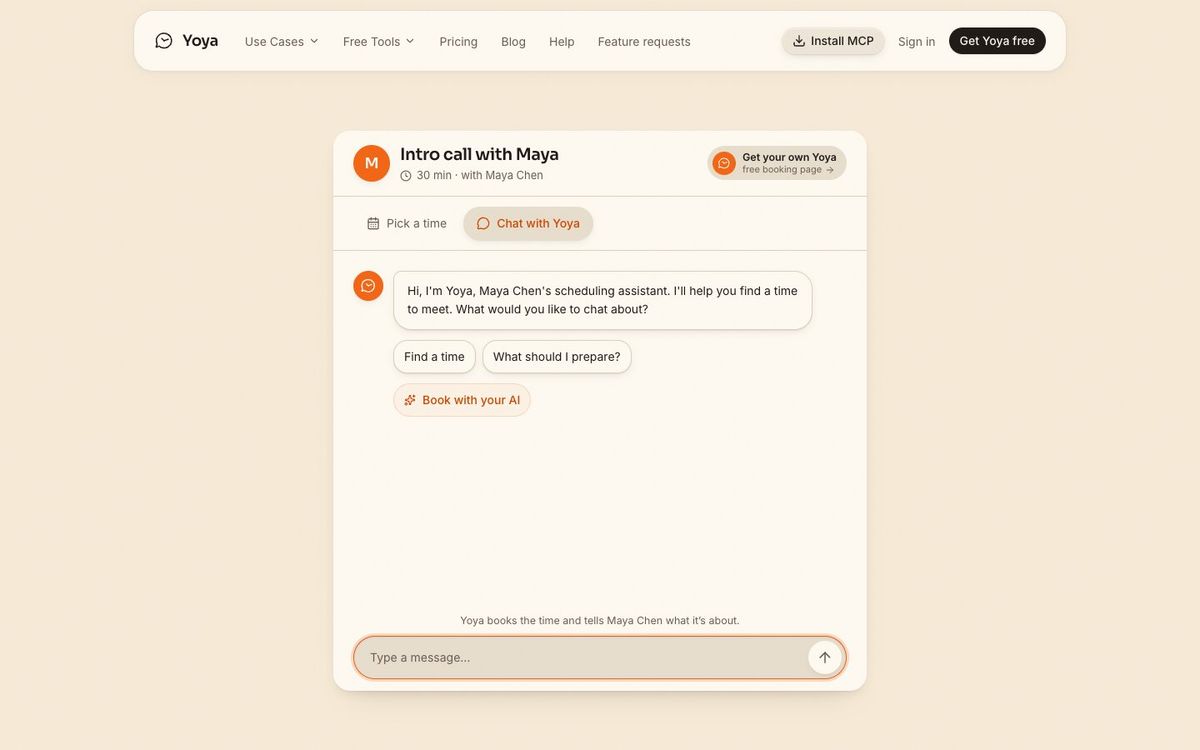
Claude creates the meeting type, saves the weekly hours and returns a live link like the one below. A new meeting type has no availability until hours are set, which is why it helps to ask for both in one sentence.
A few more that work well:
Block next Monday on my intro call and move my Thursday meeting with Sam to the next open slot on Friday.
Check my setup and tell me what is missing before I share my link.
Give me the embed code to put my intro call on my website.
What Claude can't do without you
Three limits are built into the connector.
Write access is opt-in. If you only ticked reading when you connected, Claude can look but not change. You can reconnect later to grant more, or remove the connection under Settings, Connections in Yoya.
Cancelling and rescheduling need your approval. Both tools require an explicit confirmation, and both notify the guest. Claude asks before it sends anything.
Money and third-party sign-ins stay with you. Upgrading a plan, buying voice minutes, connecting Google Calendar, Zoom or Stripe: for these the connector returns a link. It opens your Yoya dashboard with the step ready, and nothing happens until you confirm there.
How this differs from a calendar connector
Claude's calendar connectors work on your own calendar. They can find free time and add an event. They can't agree a time with someone outside your team, because Claude can't see that person's calendar.
A booking link solves that side, and the Yoya connector lets you run the link from Claude. For the longer comparison, see whether ChatGPT or Claude can schedule meetings for you and how the Calendly MCP server compares.
Questions people ask
Is the connector free? Yes. It is included on every Yoya plan, within that plan's booking limits. Team, payment and own-AI-key tools need the Business plan.
Do my guests need Claude? No. Guests book on the web as usual, by picking a time or chatting with Yoya. If a guest does use an AI assistant, Yoya has a separate public server their assistant can book through, with no account.
Can I use it in ChatGPT or Cursor? Yes. The same server works in any assistant that supports MCP. The MCP guide has the steps for each.
How do I disconnect? In Yoya, open Settings, Connections, then Manage under AI assistants. You can also remove Yoya from your connectors in Claude.